Δωρεάν αποστολή από 1 999 Kč
Γρήγορη αποστολή
Επαληθευμένο κατάστημα
Χιλιάδες πελάτες




Δωρεάν αποστολή από 1 999 Kč
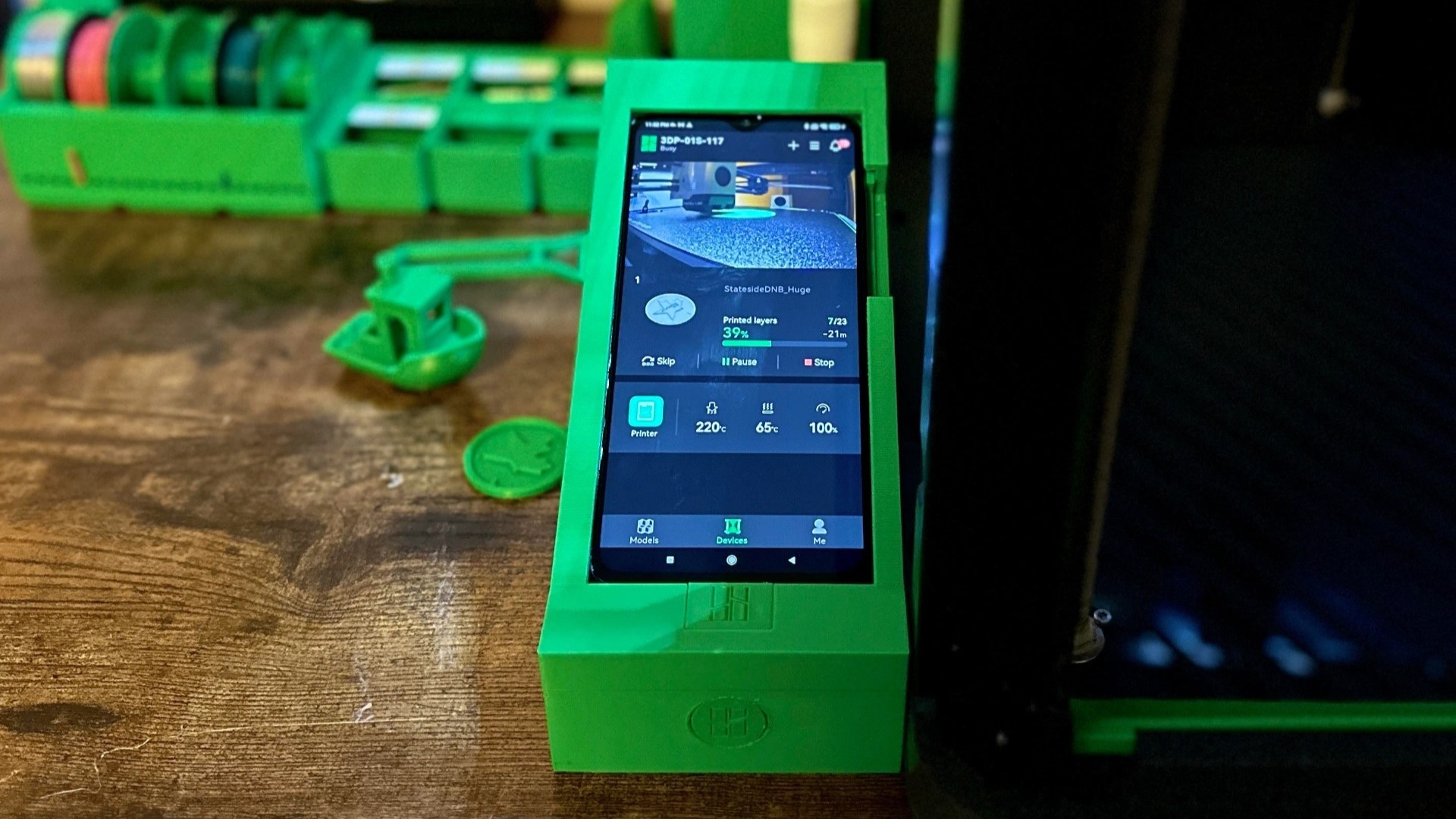
Bambu Handy is a mobile app for owners of Bambu Lab printers. It is not a full replacement for a computer slicer, but a practical controller, monitoring center, and gateway to a library of ready-made models. It is most useful when the printer is already set up on your desk and you need to quickly check the print progress, start a verified model, or deal with an alert without going back to the computer.
If you only print occasionally and want a simple path from an idea to a finished print, Bambu Handy can save you a lot of time. However, if you are fine-tuning part strength, supports, tolerances, or special materials, you will still want to use Bambu Studio.
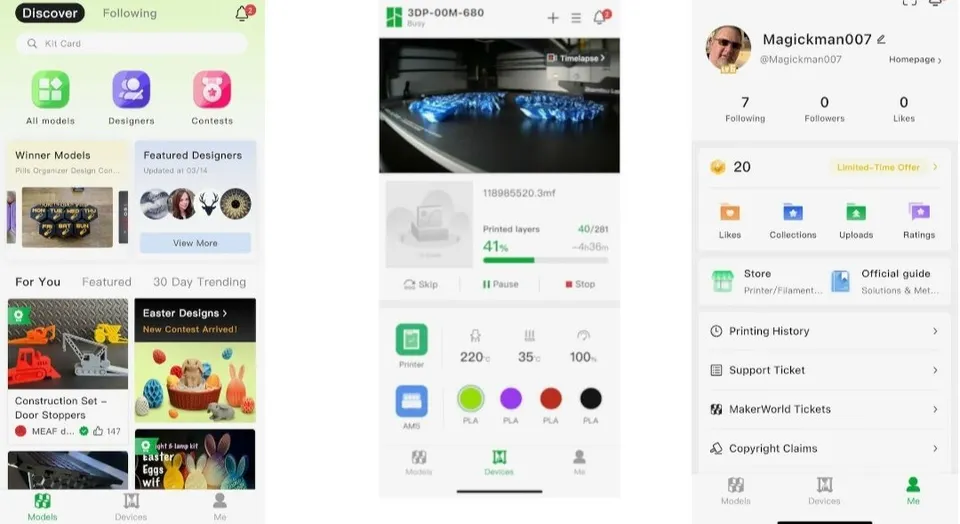
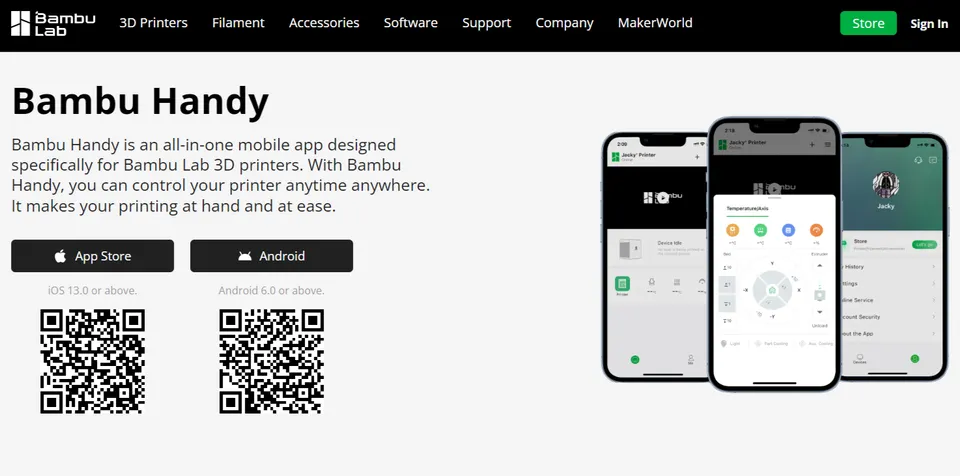
The app connects your phone to your account, printer, and Bambu Lab services. After pairing, you can see available printers, the current status, print progress, and, for supported models, the camera feed. From your phone, you can monitor, pause, and stop a print, and start a new print for selected tasks.
The second part of the app focuses on discovering models. In practice, this means finding a model on your phone, checking the available print profile, selecting a printer and material, and sending the task to print. For models with a well-prepared profile, this is significantly faster than the classic process of downloading a file, opening the slicer, setting up a profile, slicing, and only then sending it.
It is important to understand the difference: the app is not a universal mobile CAD tool or a classic slicer. It works best with models and profiles prepared for the Bambu Lab ecosystem. For simple decorations, holders, boxes, toys, or small replacement parts, it is often ideal. More caution is needed with technical parts.
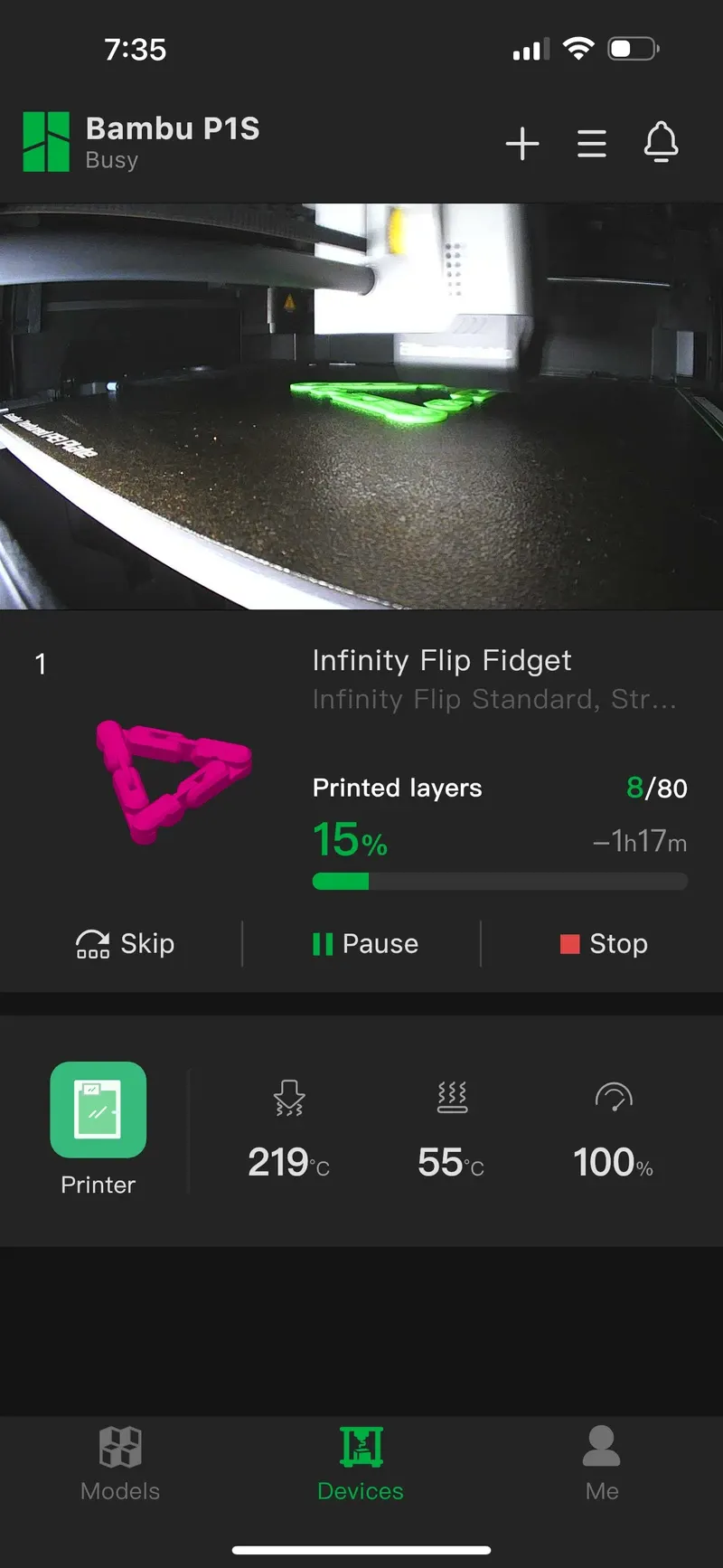
The most useful features are remote monitoring and a quick response. When the printer is running in the workshop and you are in another room, the app shows whether printing is continuing, how much time remains, and whether the printer is reporting a problem. With printers equipped with a camera, you can check the first layers, a lifted model corner, stringing, or the situation after a filament change.
Bambu Handy is also useful for notifications. Your phone can alert you when a print is complete, an error occurs, or a condition requires intervention. A practical example: you start a long print in the evening but do not want to walk to the workshop every twenty minutes. After the first layers, you simply check the image in the app and deal with it later only if you receive an alert.
Recordings and time-lapses are another useful feature. They are useful not only for sharing an attractive print, but mainly for troubleshooting afterward. If a model comes loose after three hours, the video or print history can often indicate whether the problem started with a poor first layer, a nozzle collision with the print, an unsuitable orientation, or too small a contact area with the build plate.
One of Bambu Handy’s biggest attractions is printing ready-made models from your phone. With a well-prepared model, you can select a print profile, choose a suitable printer and material, and start printing without manually configuring hundreds of parameters. This is especially useful for verified community models where someone has already prepared a profile for a specific printer type, nozzle, plate, and material.
A practical example: you need to quickly print a cable holder, a screw organizer, or a replacement cap. If the model includes a profile for your printer and a common material such as PLA or PETG, the mobile workflow is very convenient. Just check the dimensions, material, number of copies, and whether there is enough space on the build plate.
On the other hand, for models that must bear a load, fit precisely into another part, or be exposed to heat, treat mobile printing more as a starting point. The author’s profile may be good, but it may not match your filament, nozzle, required strength, or actual use.
The app is most useful for everyday monitoring. When printing longer tasks, you will appreciate being able to check without walking over to the printer. A quick view is especially valuable during the first layers: as soon as you see lifting, poor adhesion, or a ball of filament around the nozzle, you can stop the print before losing half a spool of material.
The second typical use is quickly printing ready-made items. A beginner does not have to understand all slicer parameters right away, while an experienced user does not want to open a computer for every small item. For simple models, the phone is often the fastest route.
The third situation is a shared workshop, school, or small operation. Staff can see what the printer is currently doing, respond to alerts, and do not have to sit at one computer. For a larger print farm, however, a mobile app is not an ideal management system. There, a desktop or operational solution with an overview of multiple machines, a task queue, and clear responsibility rules makes more sense.
Bambu Studio is the better choice whenever you need to properly prepare a print. This typically involves model orientation, supports, infill, walls, adaptive layers, multiple plates, material changes, or manual profile adjustments. With technical parts, the details matter: the number of perimeters, layer direction, temperature, cooling, line width, and support method.
A mobile app is convenient, but convenience must not replace control. If you are printing a car part, a holder for a loaded shelf, a component for a hot environment, or a model with precise tolerances, prepare it on a computer. You can then monitor the print from your phone, but do not skip the preparation itself.
Be equally careful with profiles from unknown authors. Even if the system helps with compatibility, always check the material, nozzle, build plate, print time, and filament consumption. For multicolor prints with AMS, also monitor the amount of waste and whether the colors and materials are assigned correctly.
Before sending a print from your phone, run through a quick check. The build plate must be clean and properly seated. The plate corresponding to the profile must be installed on the printer. The filament must be dry, loaded, and available in sufficient quantity. With AMS, check that the slots match the material and colors expected by the profile.
It is also worth checking that no previous print remains on the build plate, nothing is obstructing the printer area, and the camera has a reasonable view. For a longer print, enable notifications on your phone and monitor the first layer after starting. Remote starting is convenient, but it does not mean the printer requires no basic supervision.
With a new filament or an unknown profile, it is better to run a small test first. A short calibration part will tell you more than a five-hour print that fails due to an incorrect temperature or weak adhesion.
During the initial setup, you usually pair the printer through your account and a code shown on the printer’s display. If the connection fails, check that you are in the correct account region, that your phone has Bluetooth, local network, and notification permissions enabled, that the printer is on a supported Wi-Fi network, and that the app is up to date. With some models and routers, a separate 2.4 GHz network can help, as printers may not work well with every mixed home network.
Local mode without the cloud is a separate topic. It makes sense where privacy, company data, or operation without internet dependence is the priority. However, you will usually pay for this control by losing some of the mobile convenience. If you want to control the printer entirely locally, plan on using Bambu Studio or another local solution rather than expecting the full convenience of the mobile app.
Treat Bambu Handy as an excellent addition, not as your only tool. It is very powerful for monitoring, notifications, quickly stopping prints, and simple models based on verified profiles. It saves time and makes 3D printing accessible even to people who do not want to deal with a slicer for every small item.
However, as soon as you need quality, strength, precision, or a repeatable production process, return to Bambu Studio. The best workflow is a combination of both: prepare models and important profiles on a computer, then conveniently monitor the printer from your phone. This gives you the speed of a mobile app without losing control over the result.


