Doprava zdarma od 1 999 Kč
Rychlá expedice
Ověřený obchod
Tisíce zákazníků




Doprava zdarma od 1 999 Kč
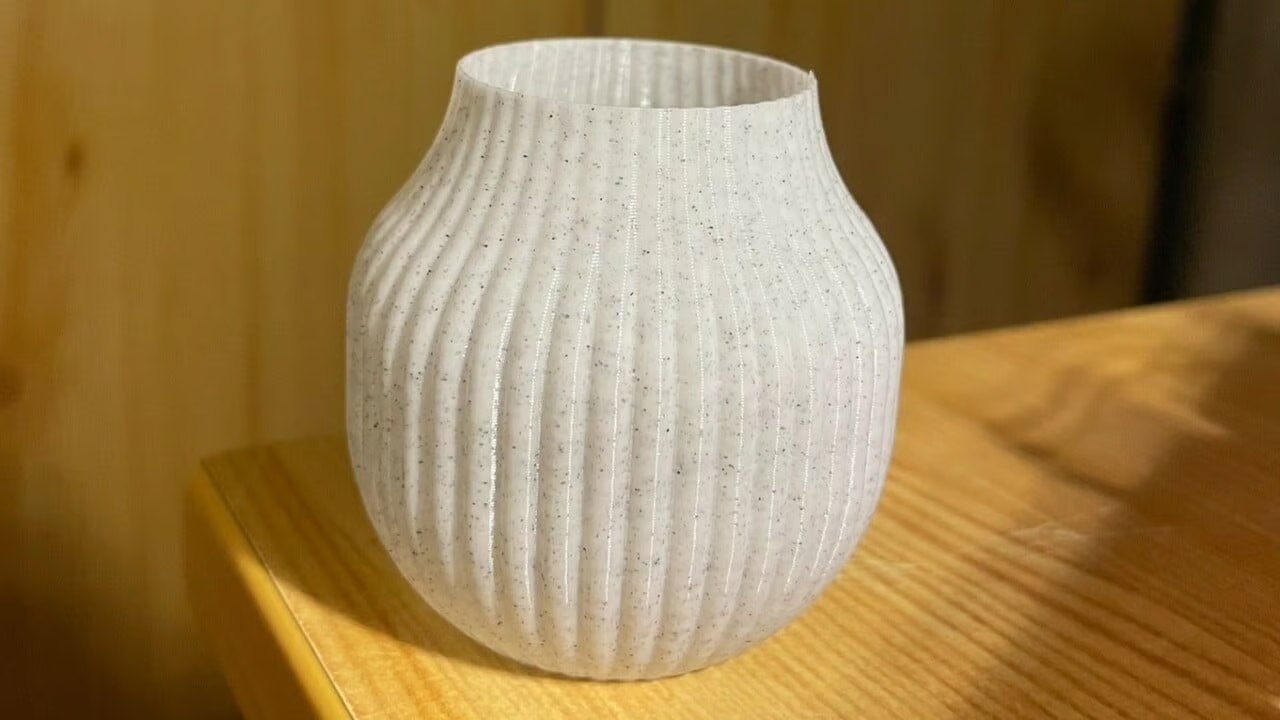
Vase mode in the Bambu Studio application is an easy way to create seamless, artistic 3D prints. Keep reading to learn how to use it and how to resolve potential problems.
Bambu Studio is a sophisticated 3D printing slicing software tool developed by 3D printer manufacturer Bambu Lab, the manufacturer of popular printers such as the P1P and X1 Carbon, as well as its own range of filaments. The software is based on PrusaSlicer, which Bambu Lab modified to work seamlessly with its range of printers.
Despite being a relatively new player on the market, Bambu Studio stands out with its project-based approach, which makes managing and organizing 3D printing projects easier. This also makes it easy to work with complex, multicolor prints thanks to its AMS technology.
This slicer is also praised for its ease of use, although its user interface may seem somewhat confusing to beginners. However, its comprehensive features are highly appreciated by more experienced users. It contains many specialized functions that can also be found in other popular slicers, including vase mode.
In this article, we will take a closer look at vase mode, also called “Spiral Vase” in Bambu Studio. Before we begin, we need to understand vase mode’s approach to printing and the advantages and disadvantages of this method. We will then look at how to activate this mode in Bambu Studio and which print settings need to be adjusted to ensure success, including several troubleshooting tips. Let’s get started!
Bambu Studio Vase Mode (Spiral Vase)
Understanding Vase Mode
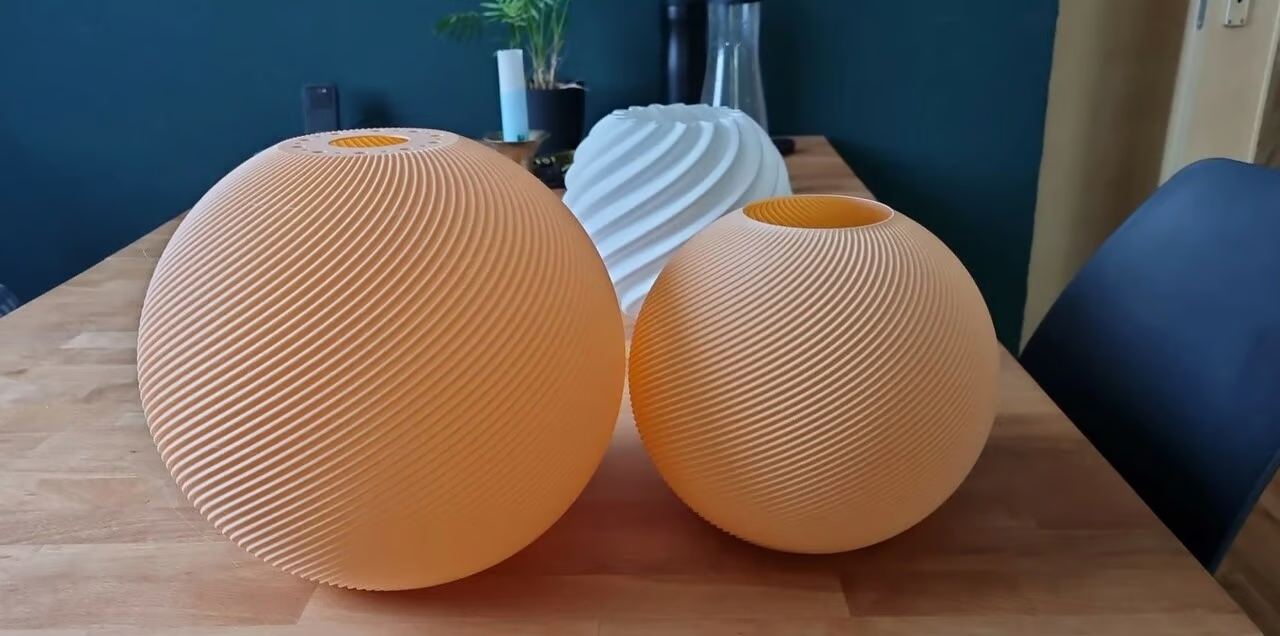
Vase mode is great for printing lampshades.
Vase mode, also known as “spiral vase,” changes the way objects are printed in three key ways:
SINGLE-WALL CONSTRUCTION
In conventional 3D printing, object walls are built with multiple layers, with the extruder stopping, retracting, and extruding again whenever the layer changes, which can lead to visible seams where each layer begins and ends. Vase mode, by contrast, prints a single, continuous outer wall without interruption, similar to the structure of a spring. This produces objects without seams. The surface is smooth to the touch and pleasing to the eye.
CONTINUOUS Z-AXIS MOVEMENT
Continuous movement along the Z-axis is a characteristic feature of vase mode, distinguishing it from standard layer-by-layer printing methods. The printer nozzle moves upward in a smooth, gradual spiral, laying down filament in a continuous stream. This movement requires sophisticated coordination between the printer’s motors and the slicing software to maintain a consistent extrusion rate and gradually increase the height.
NO INFILL, SUPPORTS, OR TOP LAYERS
By eliminating infill, supports, and top layers in vase mode, print time and material usage are significantly reduced. However, this means that objects printed in this mode are not designed to bear loads or withstand significant forces. They are best suited for decorative purposes, where aesthetics outweigh structural integrity.
Advantages and Disadvantages
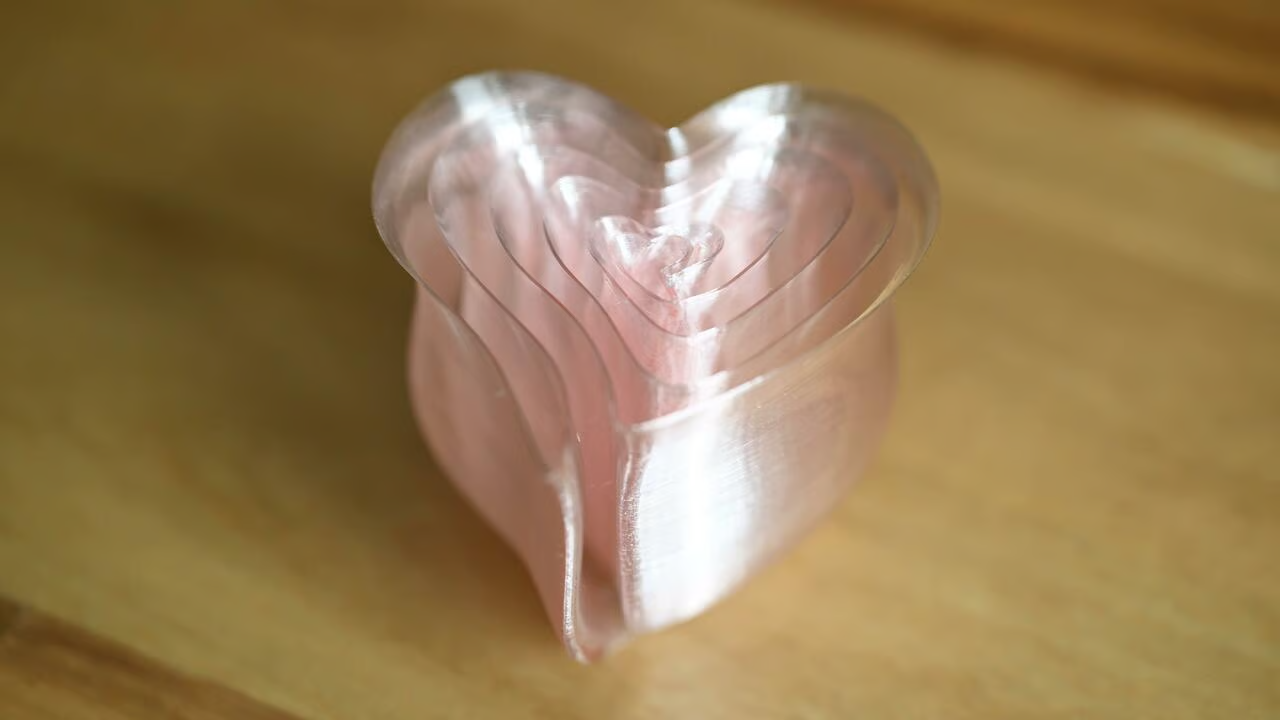
Vase mode is not limited to boring designs.
ADVANTAGES:
DISADVANTAGES:
How to Use It
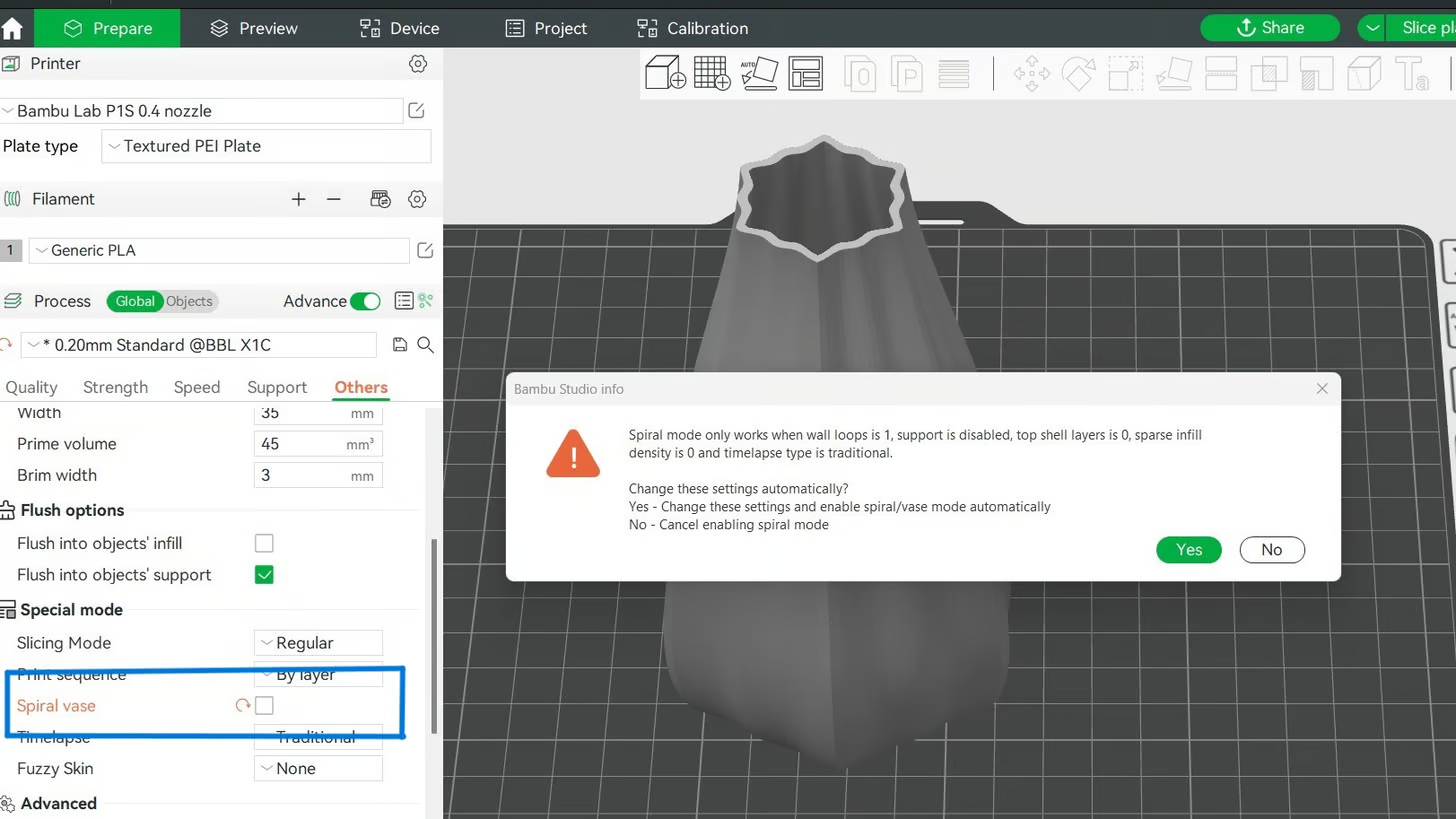
You will receive a warning message when enabling “Spiral Vase” mode.
Using vase mode in Bambu Slicer requires only a few steps. However, you must first choose suitable settings and prepare your sliced model before printing.
To enable vase mode:
Optimizing Print Settings for Quality Output
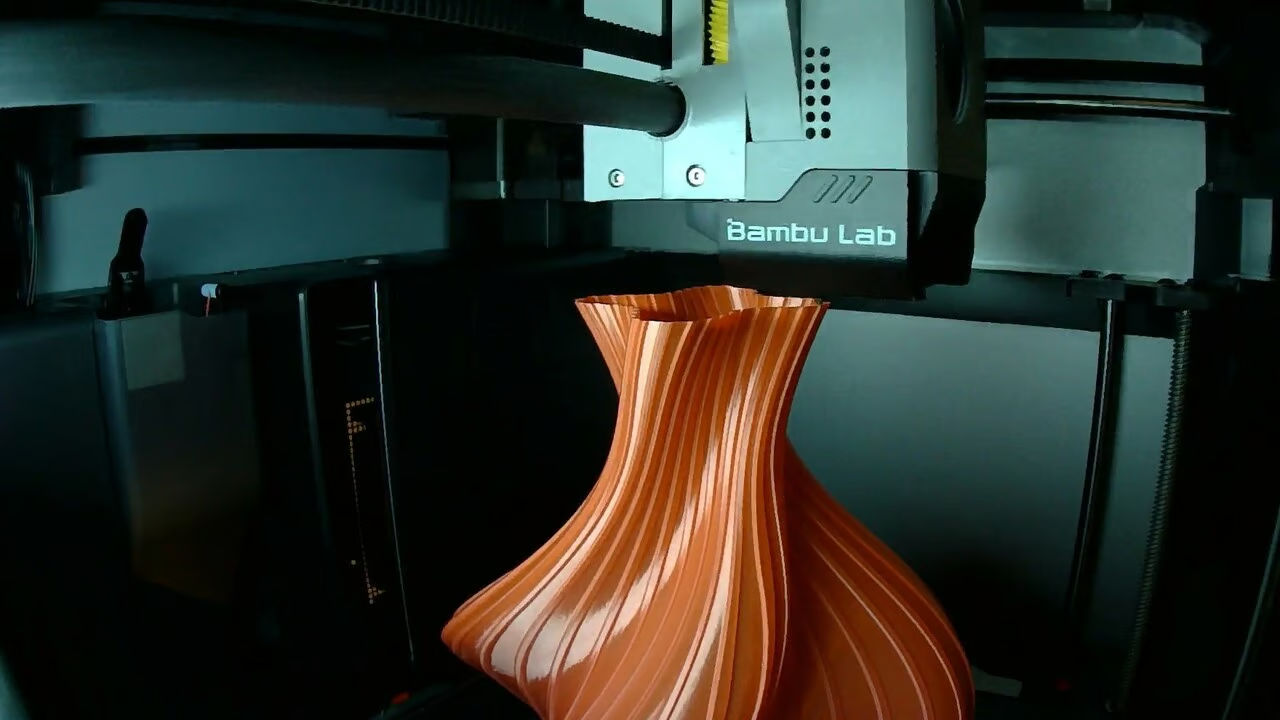
When using vase mode, you can expect thin walls.
After activating vase mode, the next step is to fine-tune various parameters to optimize print quality. Although all the most important print settings, such as temperature, still apply, there are several key parameters that can help ensure success with vase mode:
Slicing and Printing
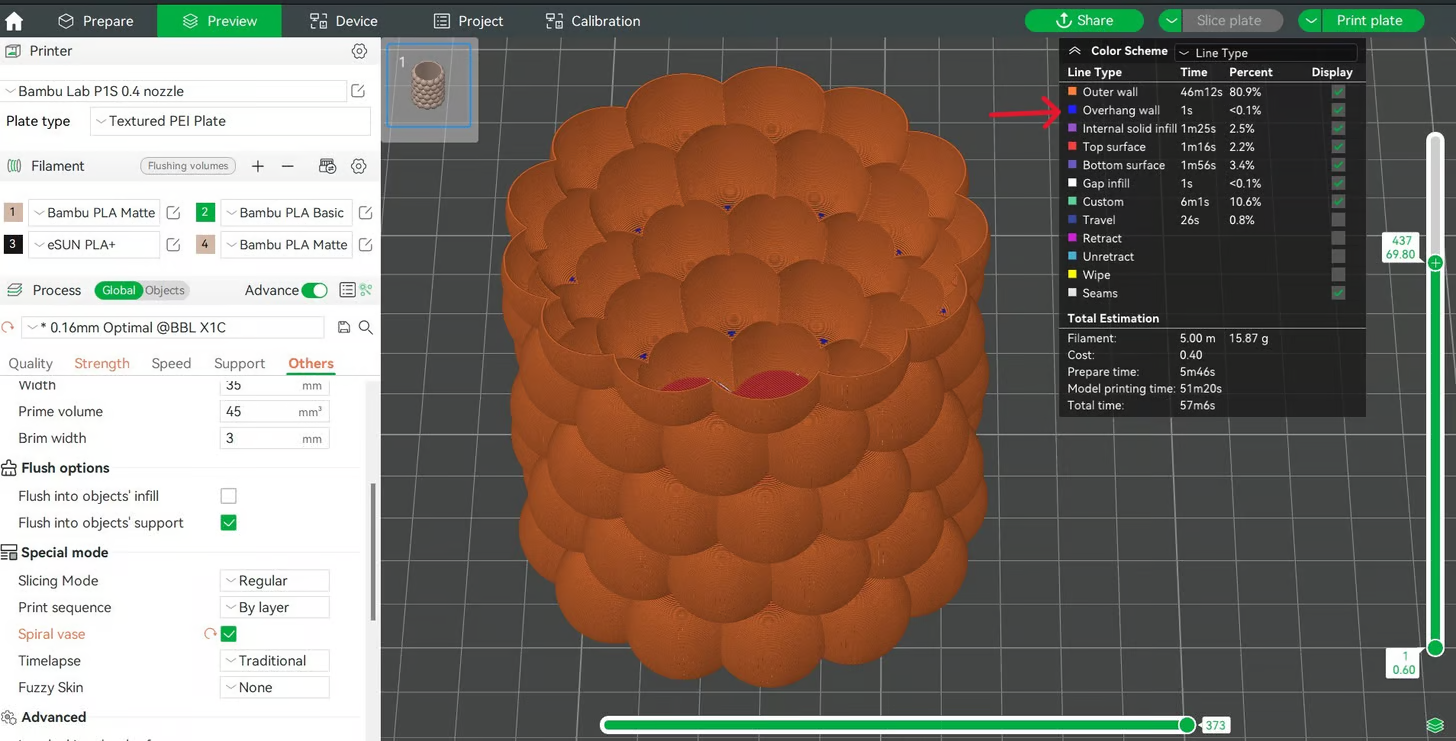
Check overhangs in Bambu Studio.
After enabling vase mode and adjusting the print settings, it is time to slice. Once finished, it is important to check your sliced file before starting the print to identify potential problems.
As mentioned above, vase mode has difficulty printing overhangs because there are no surrounding walls or supports to prevent them from failing. Bambu Studio highlights overhangs in the Preview tab, so keep this in mind when identifying these features and consider your printer’s capabilities.
In the Preview tab, you can also inspect the nozzle movement. When using vase mode, nozzle movement should be limited to the initial layers and absent from the main part of the model. If you see nozzle movement where it was not expected, your model may not be suitable for vase mode printing.
Additional Considerations
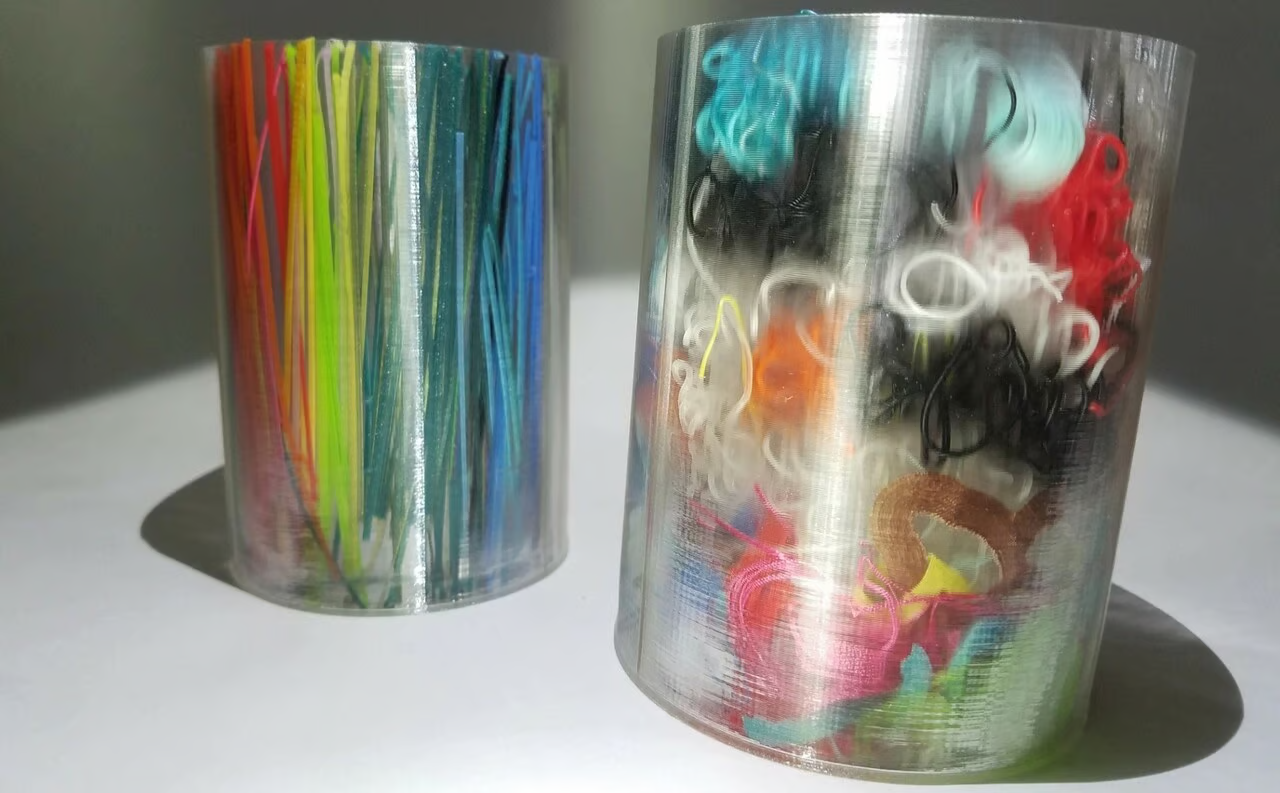
Vase mode is great for creating transparent containers.
Checking the box to enable Spiral Vase mode is easy, but achieving a successful print is not always so simple. While we will cover troubleshooting tips in the next section, first let’s make sure you are properly equipped and have a suitable 3D model.
Nozzle Size
The nozzle diameter you choose can help you create interesting effects when printing in vase mode. With a larger nozzle diameter, you can increase the line width to obtain thicker wall sections, which also improves layer adhesion and the ability to handle overhangs.
You can also increase the layer thickness, which creates a unique print surface (which may help with transparency, if that is what you want) and reduces the overall print time. However, it is important to remember that while larger nozzles can speed up the printing process, they can compromise fine details in your model.
Model
When designing for vase mode or trying to determine whether a model you found in a repository is suitable for vase mode, there are several things to consider. If the model is not already hollowed out, it is easiest to start with a solid shape, as Bambu Studio can remove all internal material simply by enabling Spiral Vase mode. Most importantly, the model must not have any internal geometry or separate parts, like this model, because vase mode is a continuous filament output.
The model should have a flat bottom to promote good adhesion to the build plate. Wall angles should be oriented nearly vertically, as excessive overhangs or bridges often lead to failure due to a lack of structural support. This also means that closed designs, such as a sphere, are not suitable for vase mode.
Deformation problems can be common in vase mode, especially when the walls are completely flat, as with a box. However, adding texture and patterns to the shell improves the model’s structural integrity through increased surface area and therefore makes it less prone to deformation.
Troubleshooting
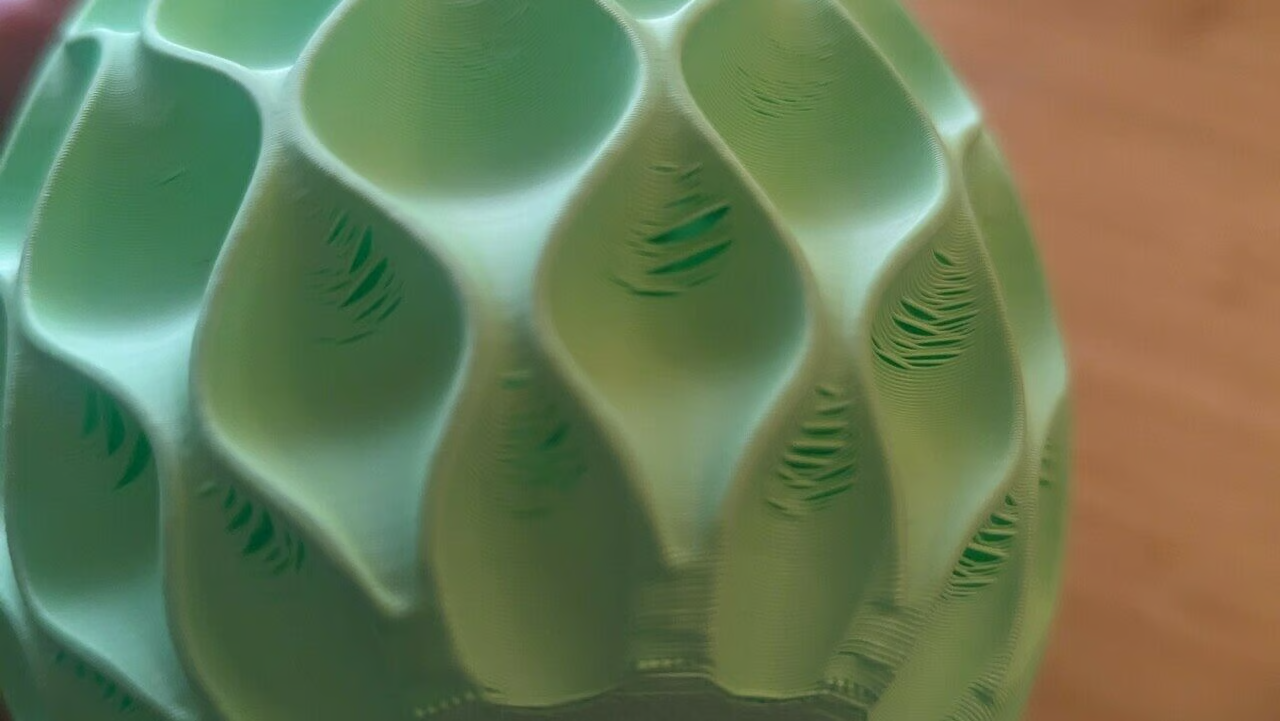
Vase mode problems are often related to the model’s geometry.
Troubleshooting common problems when printing in vase mode can be complicated because many factors are involved. Here are the key problems and their potential solutions:


